How to Use a Honeywell Home Thermostat
To use a Honeywell Home thermostat, choose the system mode, set your target temperature, and select a schedule or hold. Button names and options vary by model, so check the screen and manual for your specific thermostat.
On this page (10 sections)
- How do you change the temperature on a Honeywell Home thermostat?
- Which system mode should you choose?
- How do you set or change the schedule?
- What does Hold do on a Honeywell Home thermostat?
- What do the common display controls mean?
- How can you make a temperature adjustment last?
- Can a smart thermostat help with room comfort?
- Which other thermostat controls might be useful?
- What should you do if the controls don't respond?
- How do you use a Honeywell Home thermostat day to day?
To use a Honeywell Home thermostat, choose heating or cooling, adjust the set temperature, and decide whether to follow a schedule or hold one setting. The controls vary by model, but the screen usually shows the room temperature, target temperature, and operating mode.
For a first setup, confirm the thermostat is configured for your heating and cooling equipment. Our guide to how to set up a thermostat covers the basic steps.
How do you change the temperature on a Honeywell Home thermostat?
Use the up and down buttons, dial, or touchscreen to set your target temperature. The exact control depends on your thermostat model.
Check that the display changes to the temperature you selected. If the thermostat is following a schedule, that setting may apply only until the next scheduled period.
The room temperature and target temperature are different readings. The room temperature reflects the thermostat's current reading; the target is what it's trying to reach.
Which system mode should you choose?
Choose Heat for heating, Cool for cooling, and Off to stop normal heating or cooling calls. Some Honeywell Home models also offer Auto, which can switch between heating and cooling based on their settings.
Use the mode that matches the season and your equipment. If you select Auto, make sure the heating and cooling targets leave an appropriate gap; closely spaced settings can cause frequent changes on some systems.
A fan control may offer Auto or On. Auto generally runs the fan with heating or cooling, while On keeps it running continuously; follow your system's instructions if you're unsure which option to use.
For a plain explanation of automatic switching, read what an auto changeover thermostat does.
How do you set or change the schedule?
Open the schedule controls and set a target temperature for each available time period. The names and number of periods differ by model.
Many programmable thermostats let you choose separate settings for times such as wake, leave, return, and sleep. For a brand-specific walkthrough, see program a White Rodgers thermostat.
Set times around your routine, then review each day or day group before saving.
If you don't want temperature changes at certain times, check whether the thermostat offers a schedule pause or hold. A temporary adjustment may end at the next scheduled period.
What does Hold do on a Honeywell Home thermostat?
Hold keeps the thermostat at a selected temperature instead of following its schedule. Some models offer a temporary hold with an end time, while a permanent hold stays in place until you cancel it.
Look at the screen for a Hold label or an end time after choosing the setting. If you want the thermostat to return to its program later, choose a temporary hold when available.
For the steps and differences between hold options, see Honeywell Home thermostat permanent hold.
What do the common display controls mean?
The screen usually identifies the set temperature, room temperature, mode, and whether a schedule or hold is active. Icons and labels vary across models, so use the manual to confirm any symbol you don't recognize.
Here are common controls you may see:
- Mode: Selects Heat, Cool, Off, or sometimes Auto.
- Fan: Sets the fan to Auto or On, if your system supports both options.
- Schedule: Opens programmed time periods and temperatures.
- Hold: Keeps a chosen target temperature.
- Menu: Provides access to settings such as clock, schedule, or display preferences.
If you see a message or symbol you can't identify, note it before consulting the manual. Honeywell Home thermostats span many generations, so how to identify older Honeywell thermostat models may help you find the right instructions.
How can you make a temperature adjustment last?
Choose a hold if you want a setting to continue beyond the current scheduled period. If you only want a short change, adjust the temperature and check whether the screen shows when it will end.
A schedule is useful when you want regular changes through the day. A hold suits a change in plans, such as staying home during a period usually set for an empty house.
The thermostat's temperature swing setting, if available, affects how far the room temperature can move before the system starts again. Learn what temperature swing means on a thermostat.
Can a smart thermostat help with room comfort?
A smart thermostat can offer app control and scheduling, while room sensors can provide temperature readings beyond the hallway. Whether those features help depends on your equipment, home layout, and how you use the rooms.
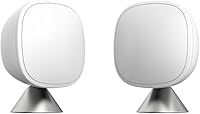
The ecobee SmartSensor 2-Pack detects occupancy and shares room temperature readings with an ecobee Smart Thermostat from up to 60 feet away, including through walls and floors. It can help prioritize a bedroom overnight when paired with that thermostat.
A room sensor is an accessory for a compatible ecobee thermostat, not a way to control a Honeywell Home thermostat. For a broader explanation, read what a smart home thermostat is.
Which other thermostat controls might be useful?
If you're comparing controls across brands, the Sensi Smart Thermostat has buttons, Wi-Fi, and a mobile app. Its features include flexible scheduling, remote access, usage reports, and maintenance reminders.
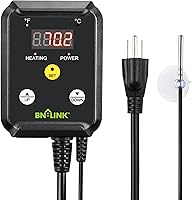
The BN-LINK Reptile Thermostat Temperature Controller is designed for heating devices such as reptile heating pads and seedling heat mats. It uses three buttons to set a temperature or switch between Fahrenheit and Celsius, so it's for a separate heating setup rather than a home HVAC system.
For another brand's everyday controls, see how to use a Braeburn thermostat.
What should you do if the controls don't respond?
Check the selected mode, schedule, and hold status first. These settings can make a temperature adjustment seem ineffective when the thermostat is following a different instruction.
If the screen is blank or buttons don't respond, look up your model's manual for its display and power checks. For general battery guidance, see whether home thermostats use batteries.
Don't remove the thermostat from the wall or change wiring unless the manual directs you and you're comfortable with the work.
Keep furniture, curtains, and other objects from blocking the thermostat's airflow. If you're trying to hide the unit, consider the controls and airflow before choosing how to cover a thermostat on a wall.
How do you use a Honeywell Home thermostat day to day?
Set the correct mode, adjust the target temperature, and use the schedule for regular routines. Choose a hold when you want to keep a setting beyond the next programmed change, and check the display to see which control is active.
If you need a straightforward thermostat, look for controls you can read and operate comfortably. If you want app access or room readings, compare those features against your HVAC setup before choosing a different system.
Frequently asked questions
How do I change the temperature on a Honeywell Home thermostat?
Use the up and down buttons, a dial, or the touchscreen to set the temperature you want, depending on your model. Check that the display shows the intended heating or cooling mode.
If a schedule is active, the change may last only until its next scheduled period unless you select a hold option.
How do I set a schedule on a Honeywell Home thermostat?
Look for Menu, Schedule, or a similar control, then set the times and temperatures for the periods your model supports. Some thermostats use a weekday and weekend plan, while others allow a different schedule for each day.
Follow the on-screen prompts or the model's manual.
What does Hold mean on a Honeywell Home thermostat?
Hold keeps a chosen temperature instead of following the programmed schedule. Depending on the thermostat, it may end at a set time or continue until you cancel it.
Check the screen for the hold status and end time, and see our guide to Honeywell Home permanent hold for details.
Why is my Honeywell Home thermostat not changing the temperature?
Check that the thermostat is in the mode you expect and that a schedule or hold isn't overriding your adjustment. Make sure the screen responds to your input, then consult the manual for that model if the setting still won't change.
A display issue or HVAC problem may need separate troubleshooting.